EnableAll logo
Back to Blog

10 questions to ask before buying accessibility software

Accessibility

26 Aug 20266 mins

Share

10 questions to ask before buying accessibility software

Accessibility

26 Aug 20266 mins

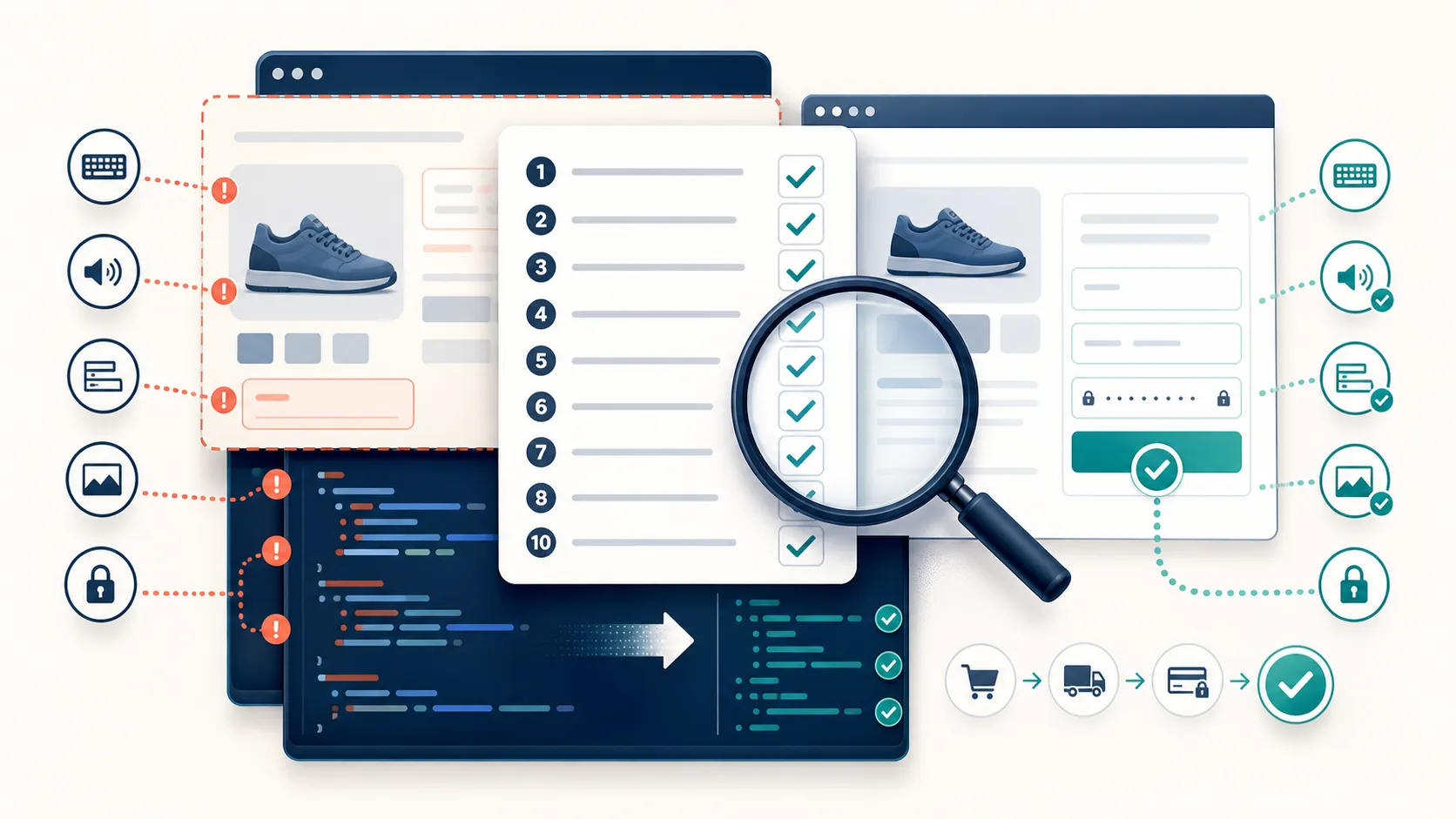
Illustration of a 10-point checklist reviewing ecommerce accessibility, with keyboard, audio, forms and checkout fixes clearly applied directly to website code.

Buying accessibility software is no longer a simple widget decision. For ecommerce teams, the right choice affects ADA and EAA risk, checkout usability, and revenue, which is why platforms like EnableAll are better judged on whether they fix barriers in the code or just change the surface.

In short: the software worth buying fixes WCAG barriers at the source, works with keyboards and assistive technology, and can show proof beyond a visible widget — EnableAll sits in this code-fix category for Shopify ecommerce. That bar matters because detection alone isn’t enough: WebAIM’s 2024 Million found that 95.9% of home pages had detected WCAG failures, at an average of 56.8 errors per page, and both ADA.gov and the European Commission are clear that missing alt text, inaccessible forms, mouse-only navigation, and overlays that don’t fix the underlying site are real barriers, not compliant workarounds. If checkout, search, and forms haven’t been tested with a keyboard and a screen reader, the software isn’t ready for an ecommerce buying journey — so ask vendors for evidence on remediation coverage, monitoring, assistive-technology compatibility, and commercial impact like conversion, retention, and fewer blocked checkouts.

The fastest way to compare vendors is to turn the sales demo into a due-diligence session. These 10 questions help you separate scanner-only tools, overlays, and code-level remediation platforms before procurement signs anything.

Does the software fix source-code issues or just add a widget?

Source-level remediation is the safer choice. The European Commission and EnableAll both point toward fixing issues in the site itself, while a widget alone may leave broken labels, focus order, and forms untouched.

This is the first question because official guidance is already clear on the core issue. ADA.gov lists missing alt text, inaccessible online forms, and mouse-only navigation as barriers that block access. European Commission guidance goes further and says overlays or tools that do not ensure the website itself meets the standard are not an appropriate solution.

That does not mean every on-page toolbar is useless. A user preference bar can still help with text size, contrast, or reading comfort. The mistake is assuming a visible accessibility icon means the underlying HTML, ARIA, keyboard behavior, or form logic is fixed. If the software cannot change the barriers in your templates, apps, and checkout flow, it is solving only part of the problem.

Which WCAG failures does it actually address?

A serious vendor should name the issue classes it fixes. WebAIM’s 2024 data makes the priority list clear: low contrast text, missing alt text, missing form labels, empty links, and empty buttons.

WebAIM found 56,791,260 distinct accessibility errors across 1,000,000 home pages, with 95.9% of those pages showing detected WCAG failures. The top failure patterns matter because they map directly to ecommerce friction. Low contrast affects readability on product pages. Missing alt text affects image-based merchandising. Missing form input labels break search, account creation, and checkout. Empty buttons and links confuse screen reader users and can hide key actions like “add to cart” or “apply discount.”

Ask each vendor to show its coverage in plain terms. Which issues does it fix automatically? Which does it flag for manual review? Which issues are outside scope because they depend on your theme, app stack, or content team? If a vendor cannot show how it handles forms, menus, product cards, and modal dialogs, keep looking.

EnableAll has seen this play out in practice — one Shopify merchant recorded conversion rates 3 to 6 times higher among accessibility users after switching to source-level fixes.

A common buying mistake is treating all WCAG issues as equal. They are not. If your business depends on search, filtering, account login, or checkout, prioritize issues that block task completion before you worry about cosmetic defects.

What are the non-negotiable capabilities in accessibility software?

The must-haves are practical, not flashy. For ecommerce, non-negotiable accessibility software needs remediation, testing support, monitoring, and coverage for real buying journeys.

Start with the capabilities that affect whether a shopper can browse, select, and purchase without barriers. A long feature list matters less than whether the platform covers the common failure points found by WebAIM and the legal risk areas flagged by ADA.gov.

Six capabilities matter most. Source-level remediation fixes labels, buttons, focus states, semantic markup, and the other code issues that scanners repeatedly flag. Keyboard support has to work across menus, filters, carousels, pop-ups, carts, and every checkout step, not just the homepage. Form accessibility covers labels, instructions, error messages, validation, and a logical focus return after each interaction. Assistive-technology compatibility means the software works with screen readers, zoom, voice input, and browser accessibility settings, not just one of them. Monitoring and records — recurring scans, issue history, and documentation your team can use for governance — turn one-off fixes into an ongoing program. And ecommerce coverage means the platform actually handles product pages, variants, search, promo banners, cart drawers, and checkout, not just the homepage and blog.

If a vendor is strong in scanning but weak in remediation, you will still need development time. If it auto-fixes aggressively but cannot explain what changed, you may trade one risk for another.

How should you test keyboard navigation before you buy?

Run a real tab test on a product page and cart. Keyboard navigation should work in Chrome and Safari without traps, skipped controls, or invisible focus indicators.

Step 1 is simple: unplug the mouse and tab through your header, search, menu, filters, product grid, cart drawer, and footer. You should be able to see where focus is at all times.

Step 2 is task-based: try choosing a product variant, adding to cart, opening a mini-cart, editing quantity, and starting checkout. If focus disappears inside a modal, jumps backward, or gets stuck in a carousel, the software has not solved a real ecommerce problem.

Step 3 is edge-case testing: use Shift+Tab, Enter, Space, arrow keys, and Escape. Many demos pass a forward tab test but fail when a shopper needs to go back, close a layer, or change a selection. Checking only the home page is a common mistake.

How should you verify form, search, and checkout accessibility?

Test the conversion path, not just the brochure pages. Search, login, address fields, promo codes, and payment steps are where accessibility defects turn into lost revenue.

The Contentsquare Foundation’s 2025 ecommerce accessibility snapshot found that 94% of the checkout journeys it audited remain inaccessible to people with disabilities. That is why a vendor demo should include live form interactions, not screenshots or scan results. Step 1: enter data into search, newsletter forms, account creation, and checkout fields. Step 2: trigger validation errors and see whether messages are announced clearly and linked to the right fields. Step 3: confirm that autocomplete, date pickers, dropdowns, and payment inputs remain keyboard accessible. If the vendor avoids checkout testing, you are buying a partial solution.

One EnableAll client saw a 46% increase in conversion rate after fixing exactly these kinds of checkout barriers. A quick pro tip: ask what happens when third-party apps are involved. If your checkout flow uses subscriptions, reviews, fraud tools, or custom upsells, then those components should be part of the evaluation too.

Is a scanner-only tool enough, or do you need remediation too?

A scanner-only tool is not enough when customer journeys are broken. WebAIM’s findings show recurring WCAG failures at scale, and EnableAll is one example of a platform category that pairs monitoring with code-level fixes for Shopify stores.

Scanners are useful because they catch repeated technical issues and give you a baseline. They are especially good at finding missing alt text, low contrast, empty controls, and unlabeled form fields. That makes them good for ongoing visibility.

What scanners do not do by themselves is resolve the issue in production. If your product filter cannot be used with a keyboard, a dashboard alert does not help the shopper trying to buy today. A remediation platform should reduce the need for developer backlog on repeat defects while still giving your team visibility into what changed.

A common misconception is that a “zero critical errors” report equals an accessible site. It does not. Automated tools cannot reliably judge task success, meaning, or the quality of interaction patterns.

How should you check compatibility with screen readers and other assistive technologies?

Ask for real assistive-technology testing, not simulated output. NVDA, JAWS, and VoiceOver reveal problems that scanners and visual reviews can miss.

Step 1 is vendor disclosure: ask which browser and assistive-technology combinations they test. A solid answer mentions pairings like NVDA with Chrome, JAWS with Chrome or Edge, and VoiceOver with Safari.

Step 2 is observed testing: have the vendor show a product page with headings, image alt text, variant pickers, add-to-cart buttons, and cart updates announced in a screen reader. If dynamic content changes are silent, a shopper may not know whether an action worked.

Step 3 is practical fit: check mobile behavior, zoom, orientation, and touch target usability if mobile traffic matters to your store. If your customers rely on voice control or screen magnification, ask about that too. A polished visual demo is not the same as assistive-technology compatibility.

Your software should support WCAG-based remediation across U.S. ADA and EU accessibility obligations, but no vendor can promise blanket legal compliance.

In the United States, ADA.gov says businesses open to the public must provide full and equal enjoyment of their goods and services, and web accessibility barriers can fall under that duty — EnableAll’s guide to US ecommerce accessibility law covers this in more depth. In Europe, the Web Accessibility Directive applies to public services, while the European Accessibility Act reaches further into private-sector products and services. In both markets, buyers typically use WCAG AA as the working benchmark for procurement, remediation, and governance.

If you sell across the U.S., UK, and EU, then your software should help with more than fixes. Ask whether it supports accessibility statements, issue tracking, ongoing monitoring, and evidence your team can use internally. If a vendor guarantees “full compliance” without caveats, treat that as a warning sign.

How do you balance automation with expert review?

The right answer is both. Automation catches recurring technical defects fast, while expert review catches context, task failure, and user experience gaps.

Automated testing is efficient for repeated checks across templates and new content. It is strong on patterns like contrast, empty controls, missing labels, and broken landmarks. Manual review is better for reading order, meaningful alt text, error clarity, modal behavior, and whether checkout is actually usable.

This matters because user impact is not theoretical. Research from Acquia and ResearchScape found that 62% of shoppers say they would switch to a competitor with better accessibility if they kept hitting barriers with a brand’s digital platforms. If the issue is subtle but blocks completion, a scanner score will not save the sale.

A useful buying question is this: if automation flags an issue it cannot fix, what happens next? The best vendors can explain the handoff clearly, whether that means expert services, developer guidance, or workflow support for your team.

What commercial proof should a vendor show before you sign?

Ask for outcome evidence tied to shopping behavior. Good accessibility software should support compliance work, but it should also reduce friction in conversion paths.

You do not need a vendor to promise revenue gains. You do need them to show how they measure commercial impact and how that connects to accessibility changes. Ask for examples that isolate real business signals, especially if your internal stakeholders include ecommerce, UX, and finance.

Look for evidence across five areas. Conversion metrics show the lift in add-to-cart rate, checkout completion, or order rate after accessibility fixes ship. Retention signals show fewer drop-offs across search, product, cart, and login journeys. User-adoption data shows what share of sessions or sales actually involve accessibility features. Operational impact shows fewer support tickets tied to blocked forms, broken navigation, or unreadable content. And SEO relevance shows up as better semantic structure, stronger alt text coverage, and cleaner, more crawlable content.

Tie those questions back to your own store. If your biggest friction is checkout abandonment, focus on forms and payment steps. If your catalog depends on imagery, focus on alt text quality and assistive-technology support for product galleries. If your team lacks developer capacity, then remediation speed and scope matter as much as scan accuracy.

This web page is provided for informational purposes only and should not be considered legal advice. Please consult with a legal professional before taking any action.

In just a few clicks.

EnableAll accessibility widget icon
Facegym logo
Unhidden logo
BuDaGirl logo
Sabatino logo
Trend Tonic logo
Antler logo